
Outline
This article will take you through the steps of setting up a Blueprint to add an iPad to DEP through Apple Configurator 2.
Prerequisites
Apple computer that you can plug an iPad charging cable into
Apple Configurator 2
An admin account for Apple School Manager
An account to log into Jamf School
Step 1 - Download the wifi profile
- Log into Jamf School. On the left, click on Profiles then Profiles
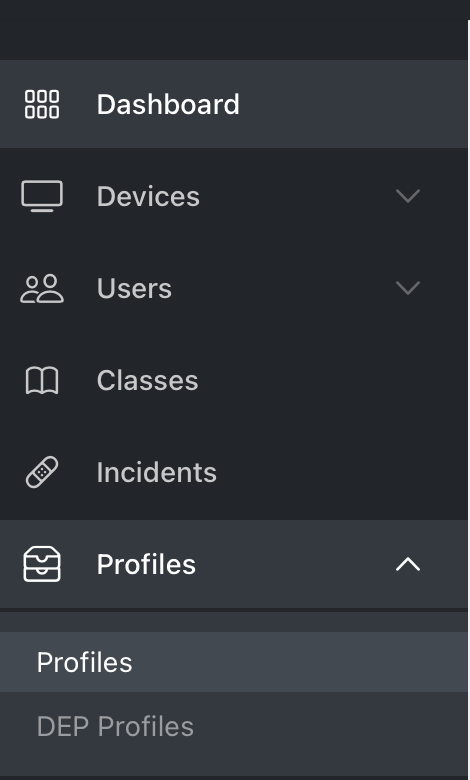
- Download the wifi profile by clicking on the download button


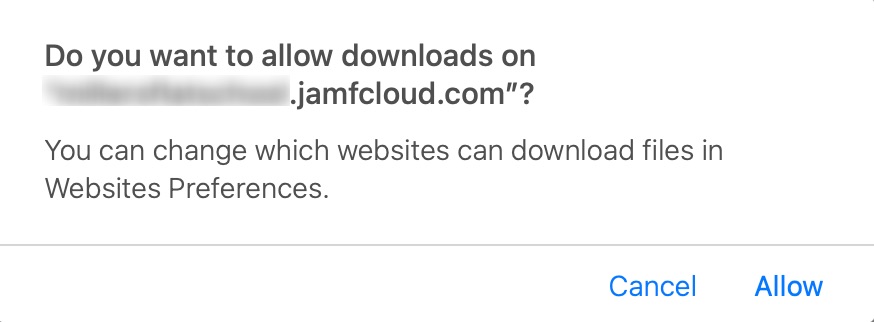
- Click allow to download the profile
Step 2 - Download the Supervision identity
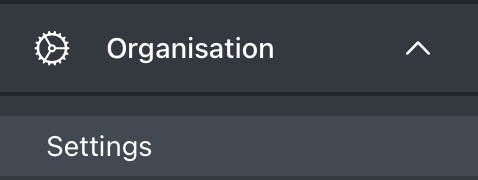
- Log into Jamf School. Click on Organisation then Settings
- Click on Supervision identity

- Click on Download supervision identity

- Click on Show Password, then copy the password

Step 3 - Set up the Organisation in Apple Configurator 2
- Open Apple Configurator 2
- Click on Apple Configurator then click Preferences
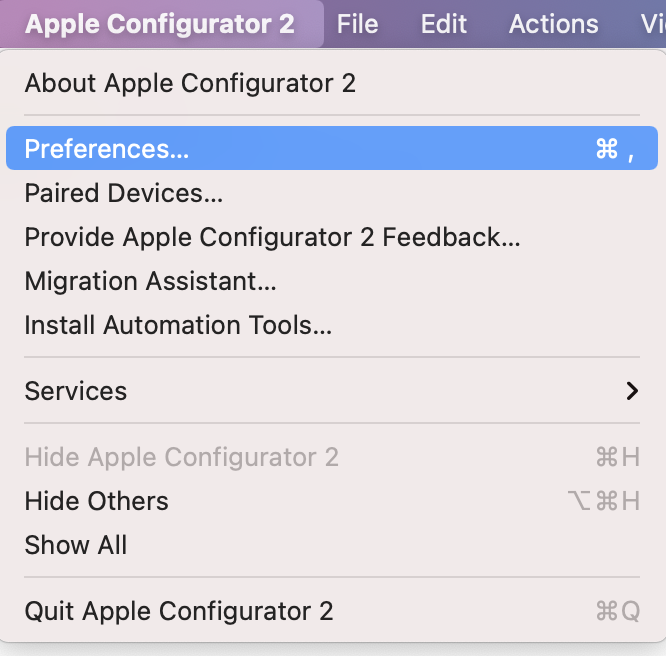
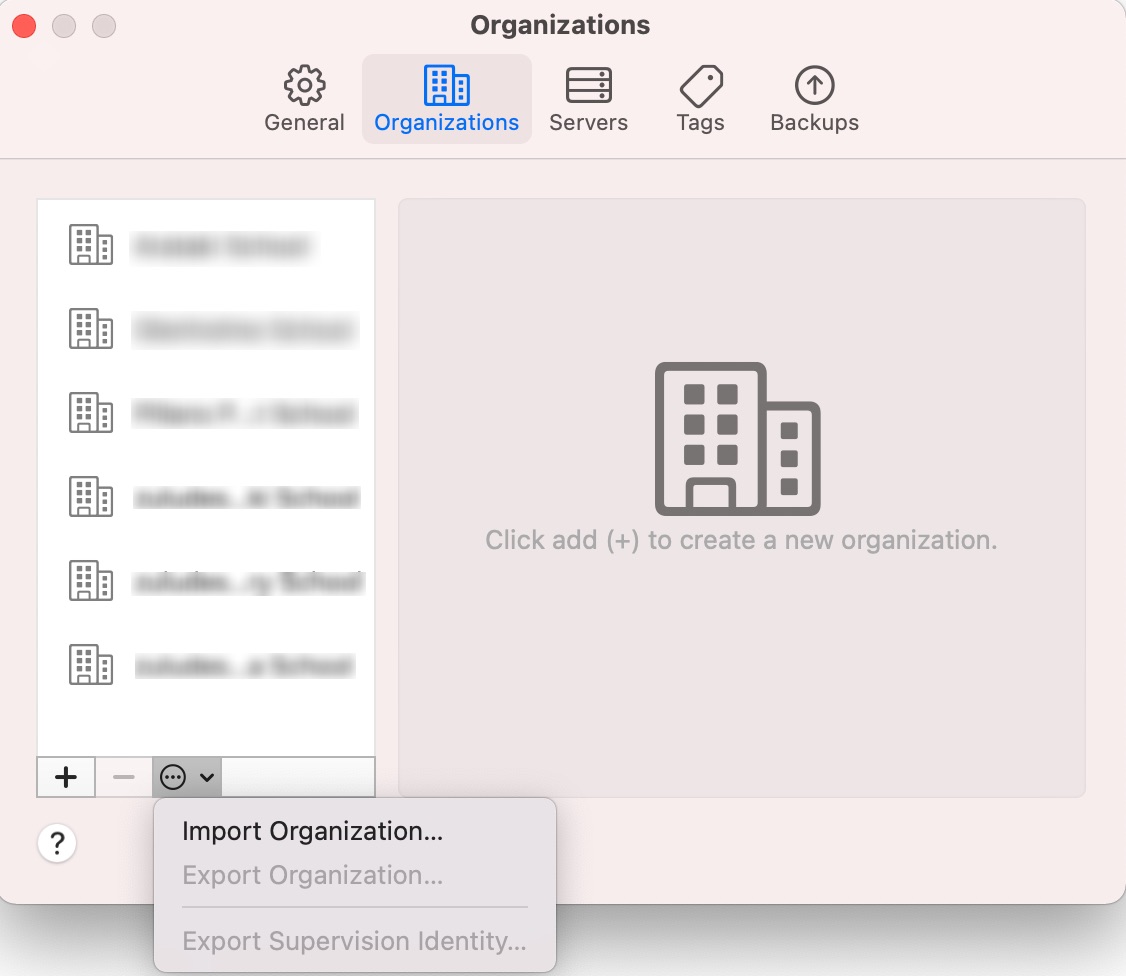
- Click on Organizations, Click on the elipsis then Import Organizations
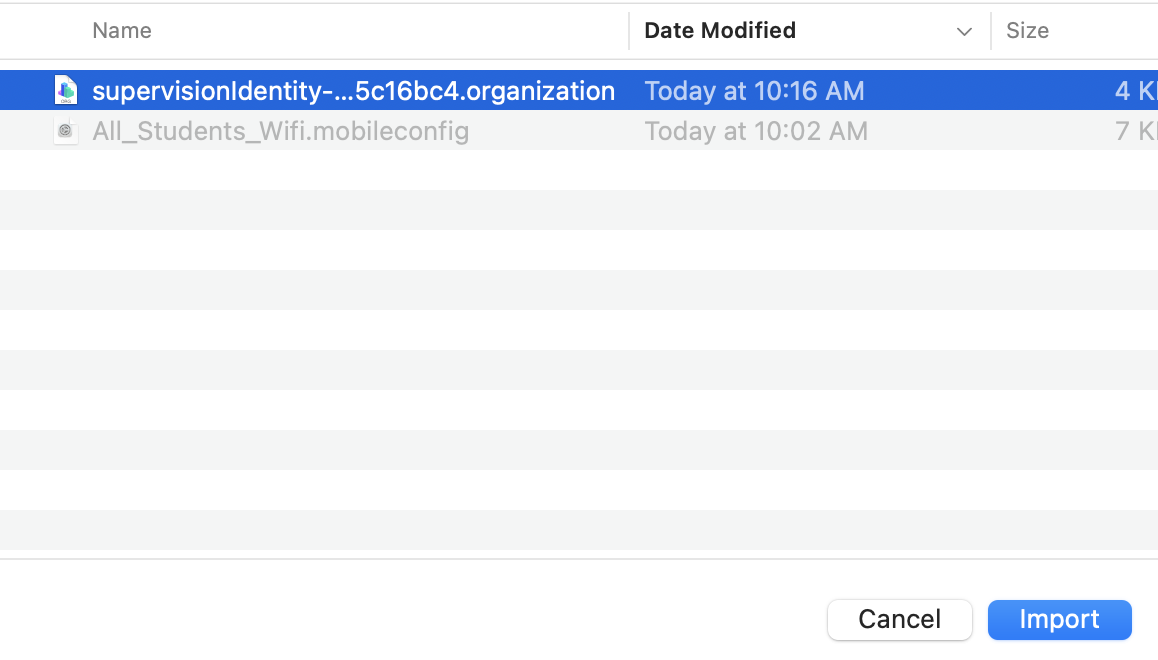
- Browse to Downloads, select the file and click Import
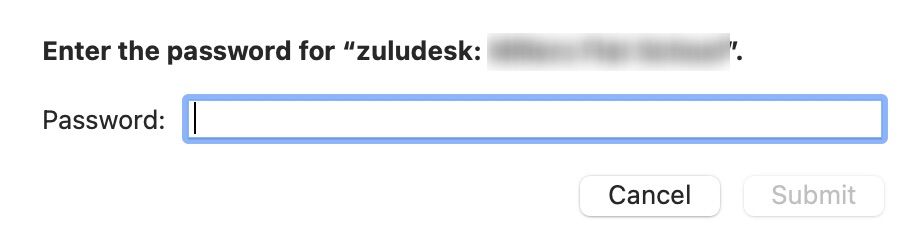
- Paste the password then click Submit
Step 4 - Set up the Server in Apple Configurator 2
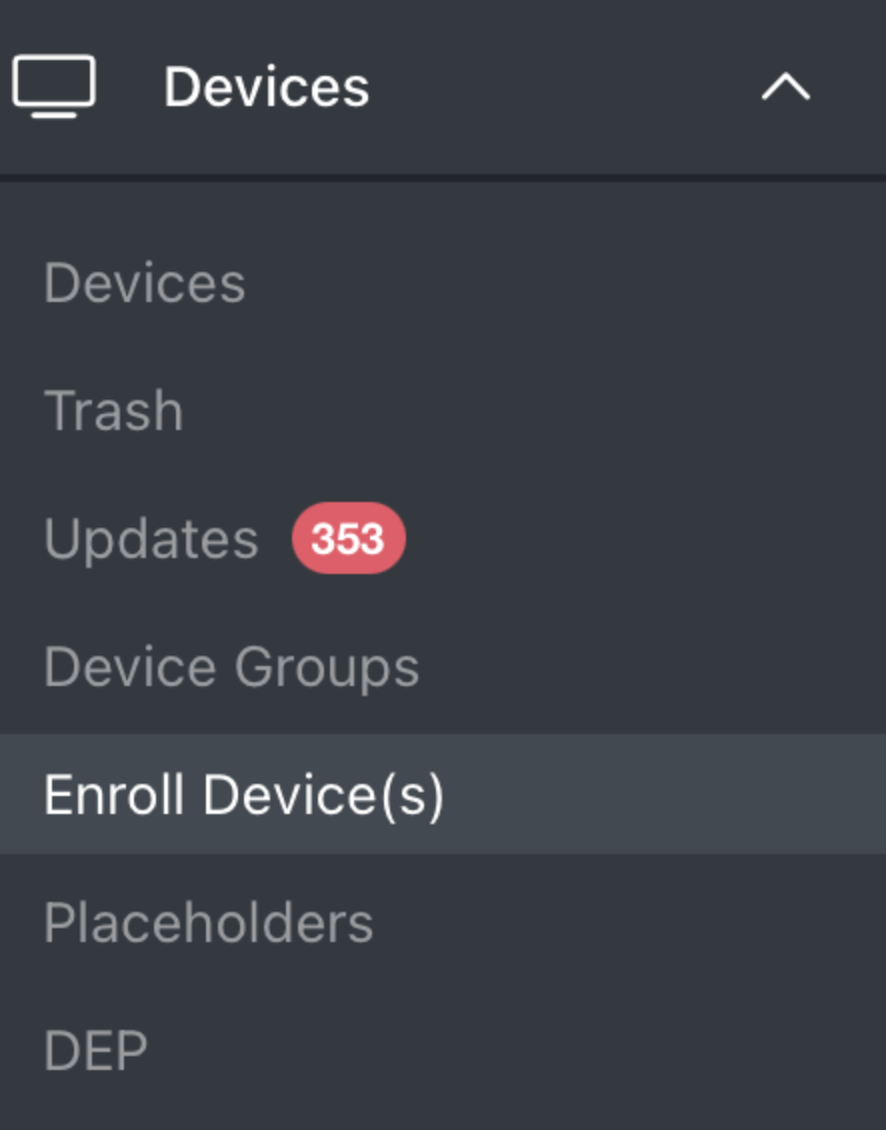
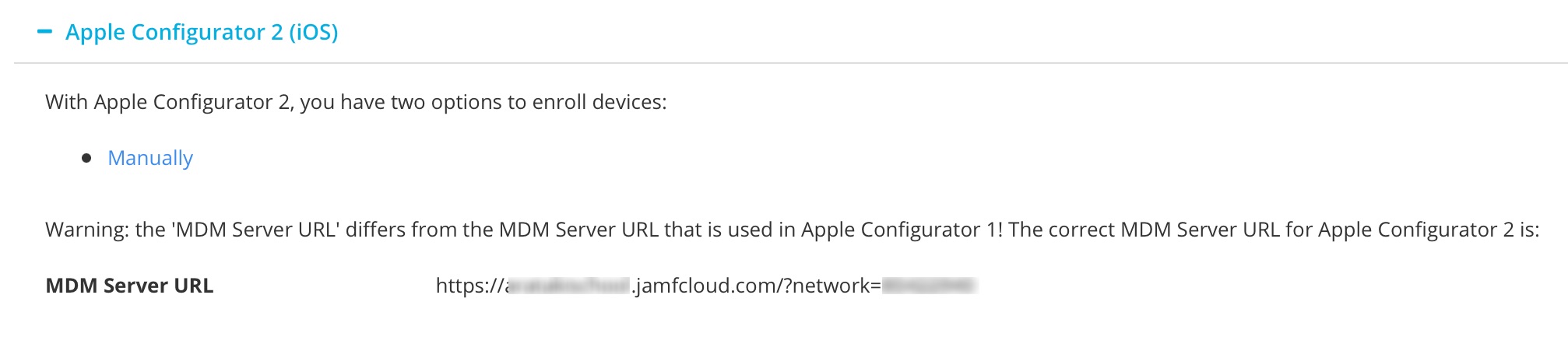
- Log into Jamf School. Click on Devices the Enrol Device(s)
- Select and copy the MDM Server URL
- Open Apple Configurator 2
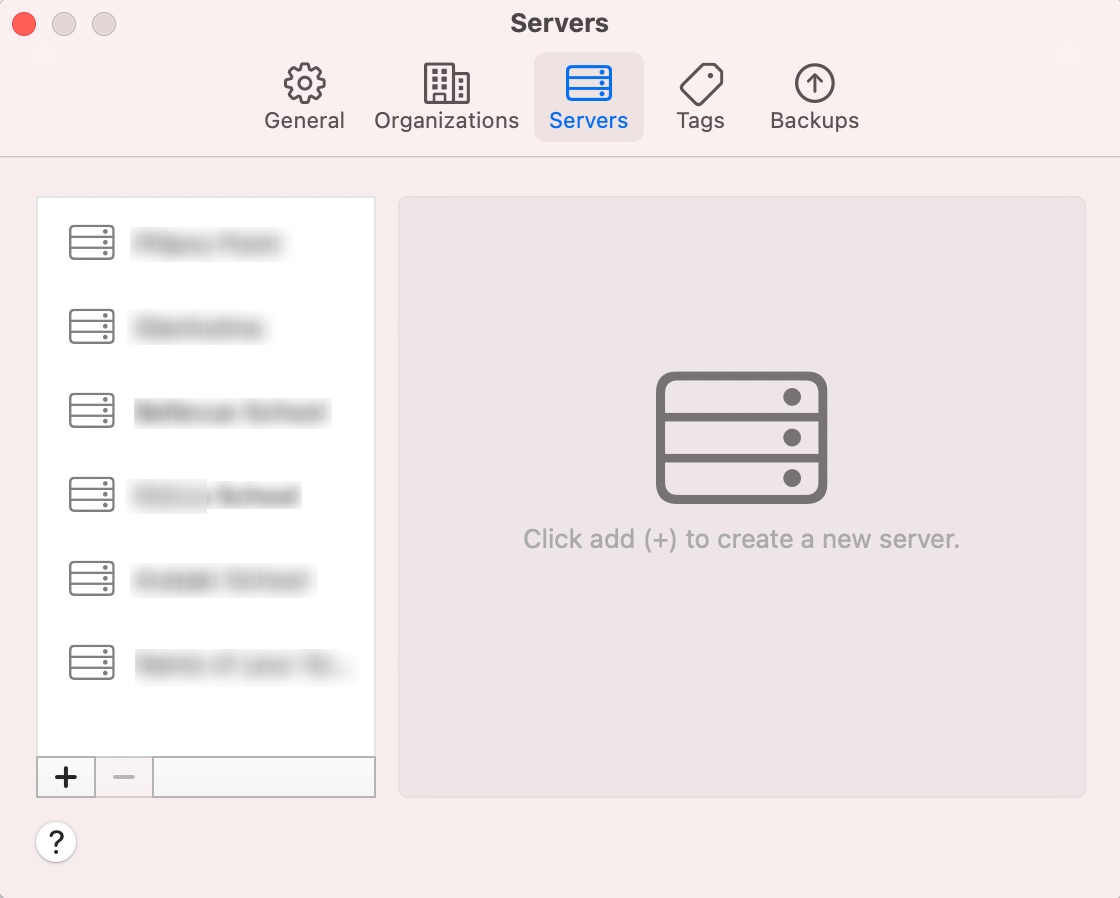
- Click on Apple Configurator 2 then Preferences
- Click on Servers then Click +
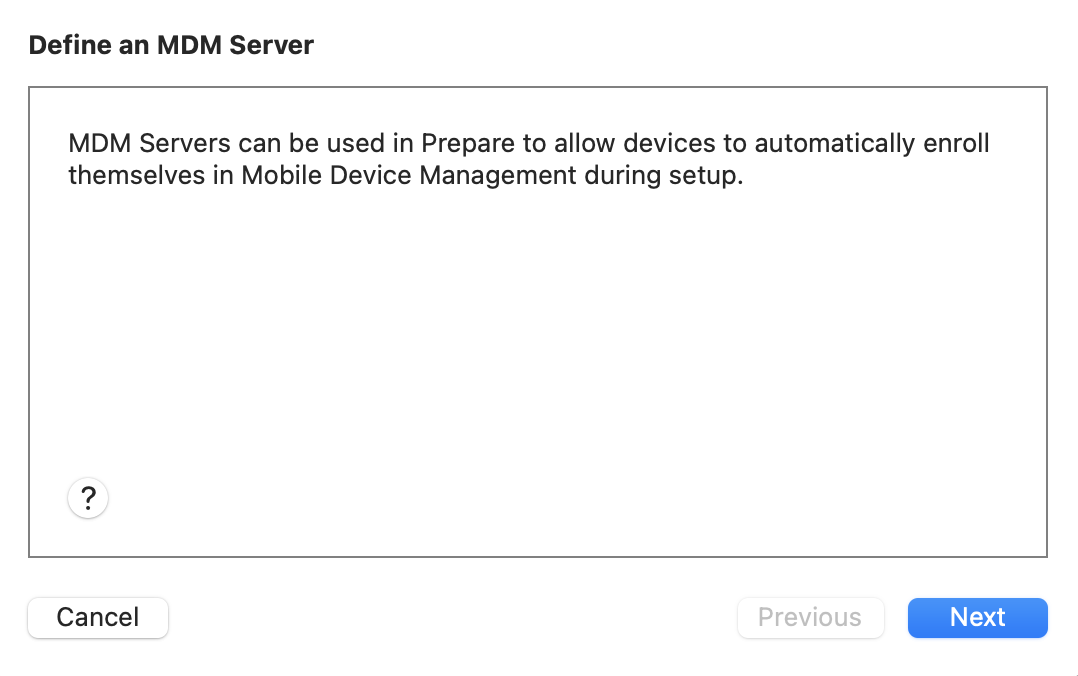
- Click Next
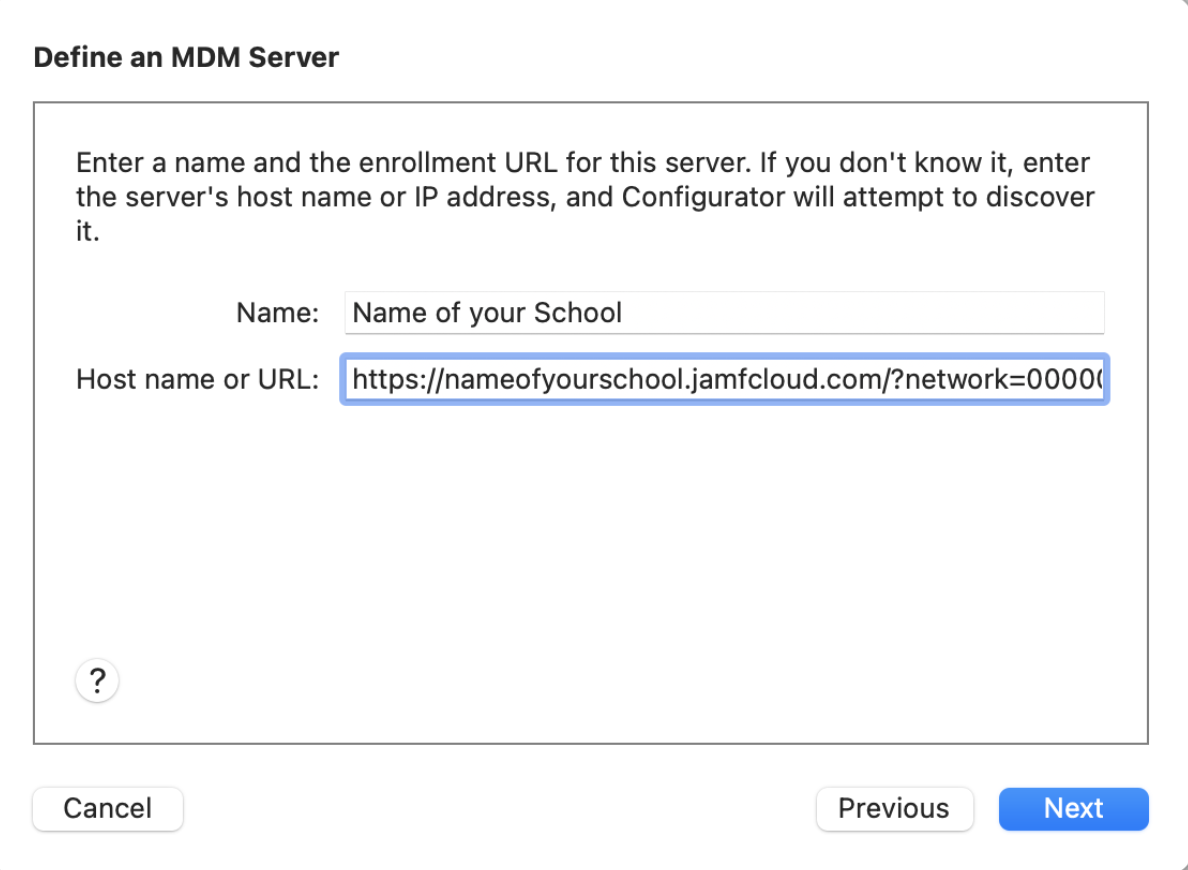
- Enter the School Name in Name
- Paste the MDM Server URL into the Host name or URL, then click Next
Step 5 - Set up a Blueprint
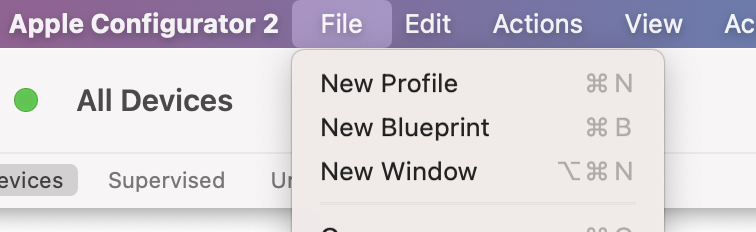
- In Apple Configurator 2, click File then New Blueprint
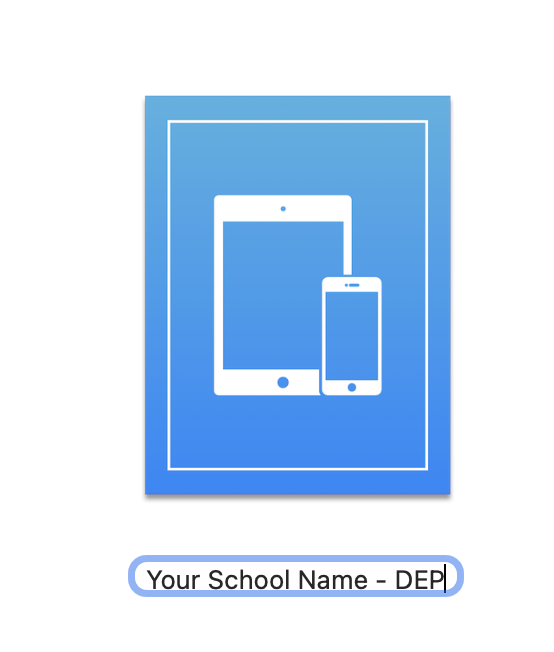
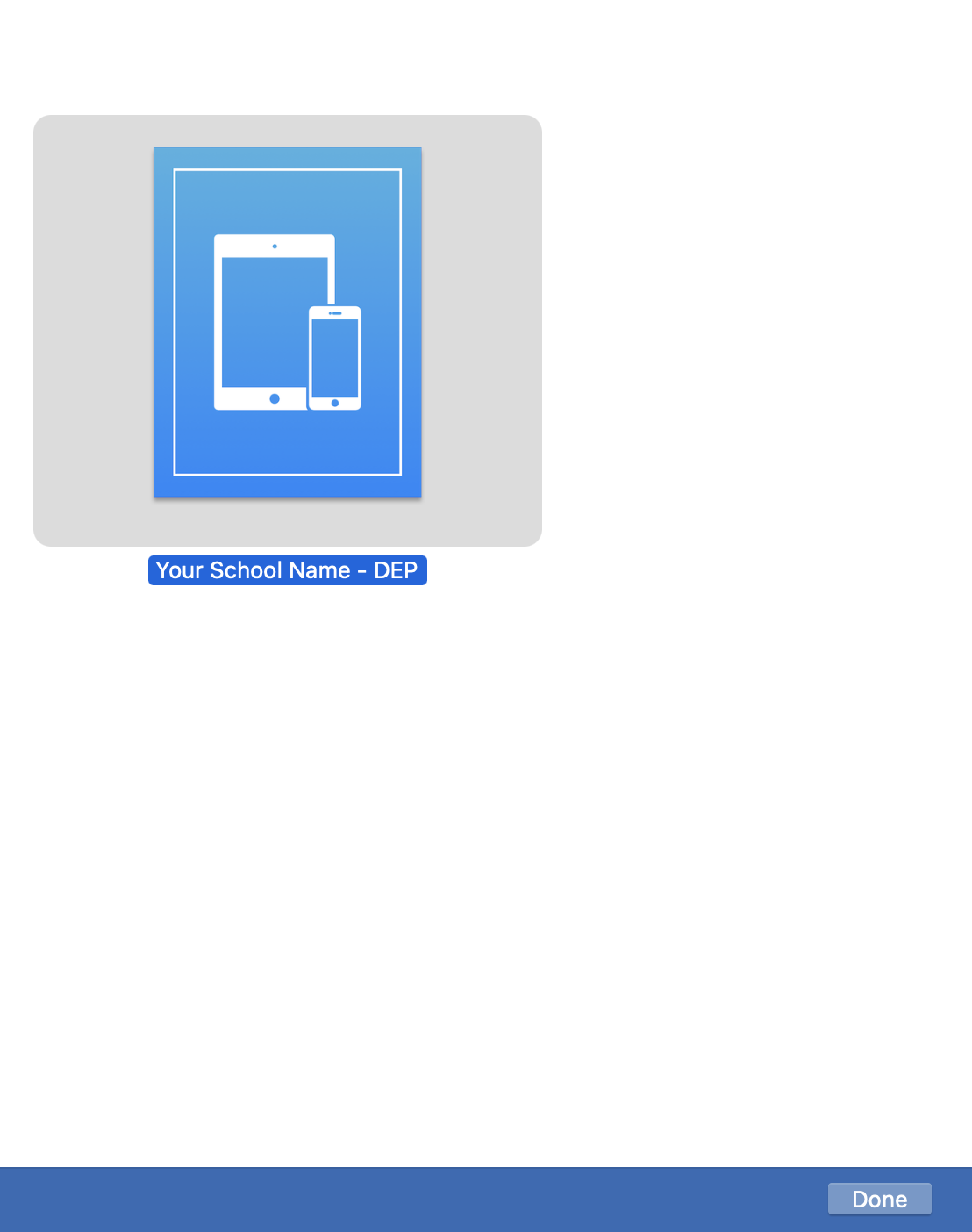
- Name the Blueprint Your School Name - DEP
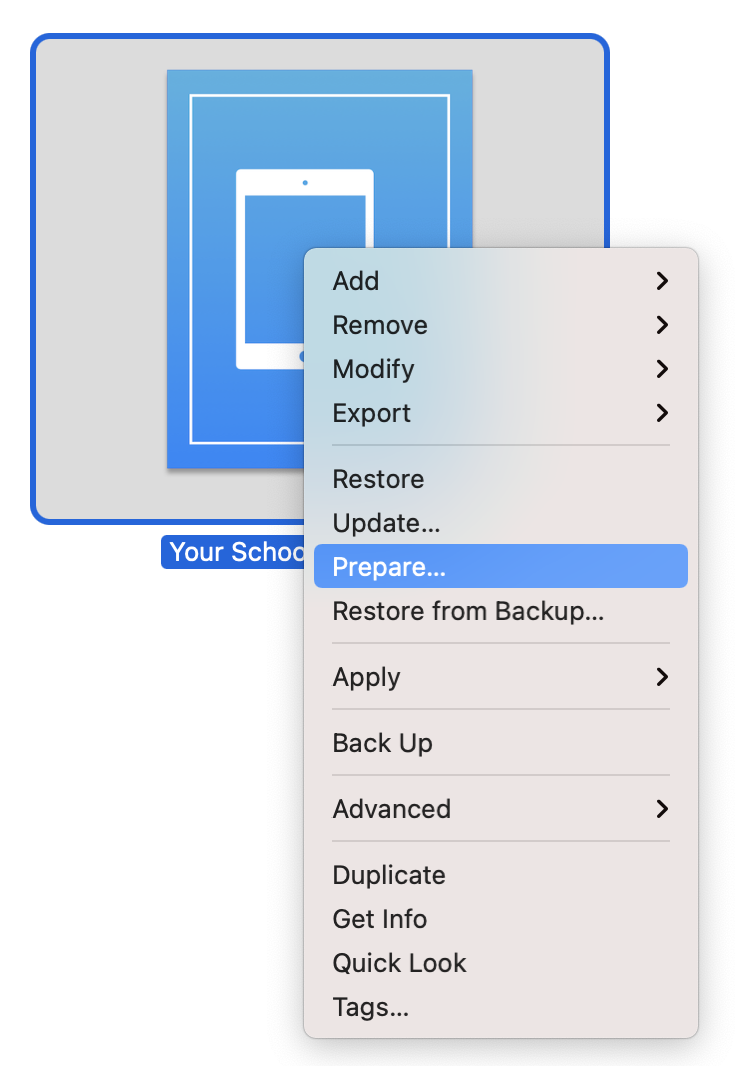
- Right Click on the Blueprint and choose Prepare
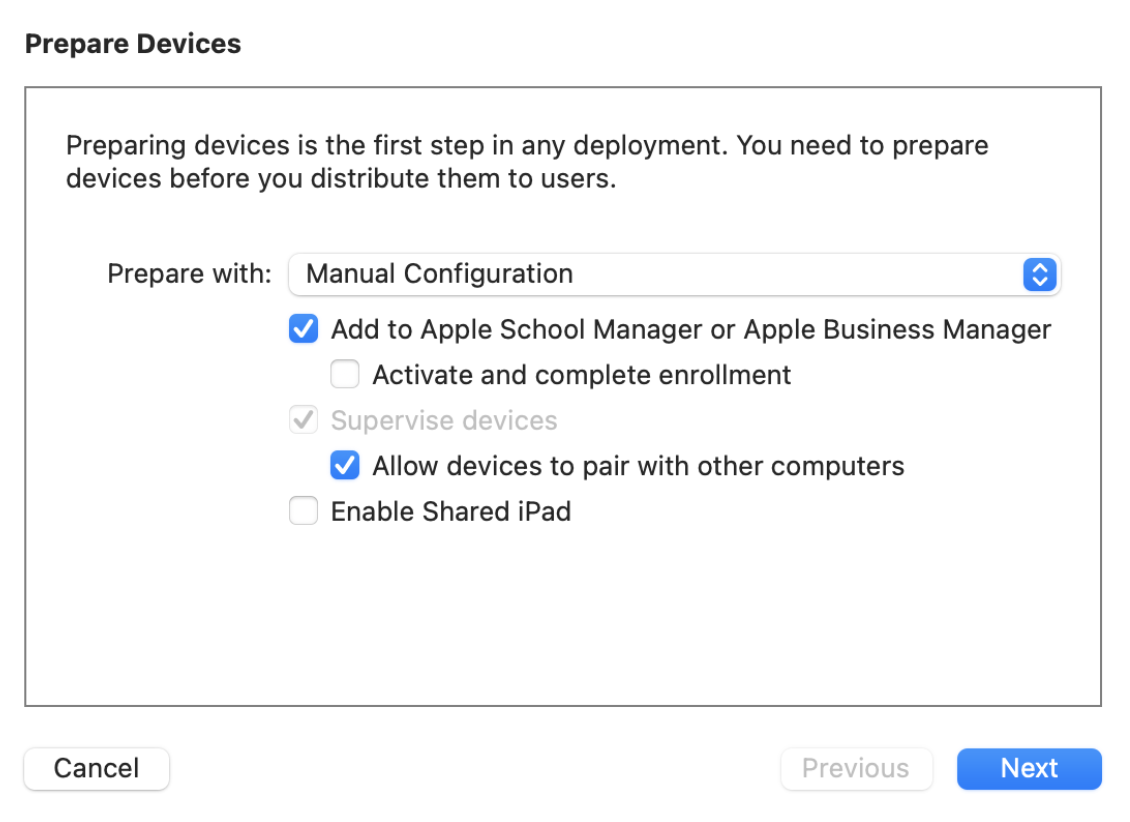
- Select Add to Apple School Manager or Apple Business Manager and Allow devices to pair with other computers, then click next
- Choose the server set up in Step 4 then click next
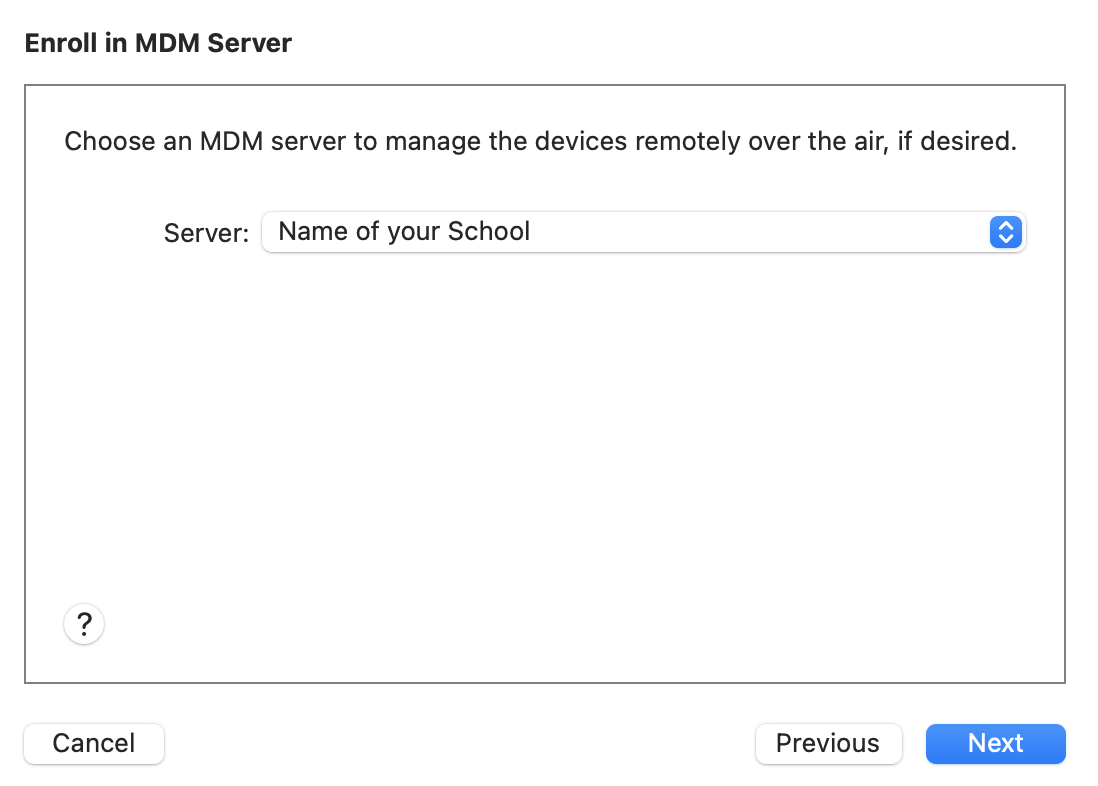
- Choose the Organisation set up in Step 3, then click Next
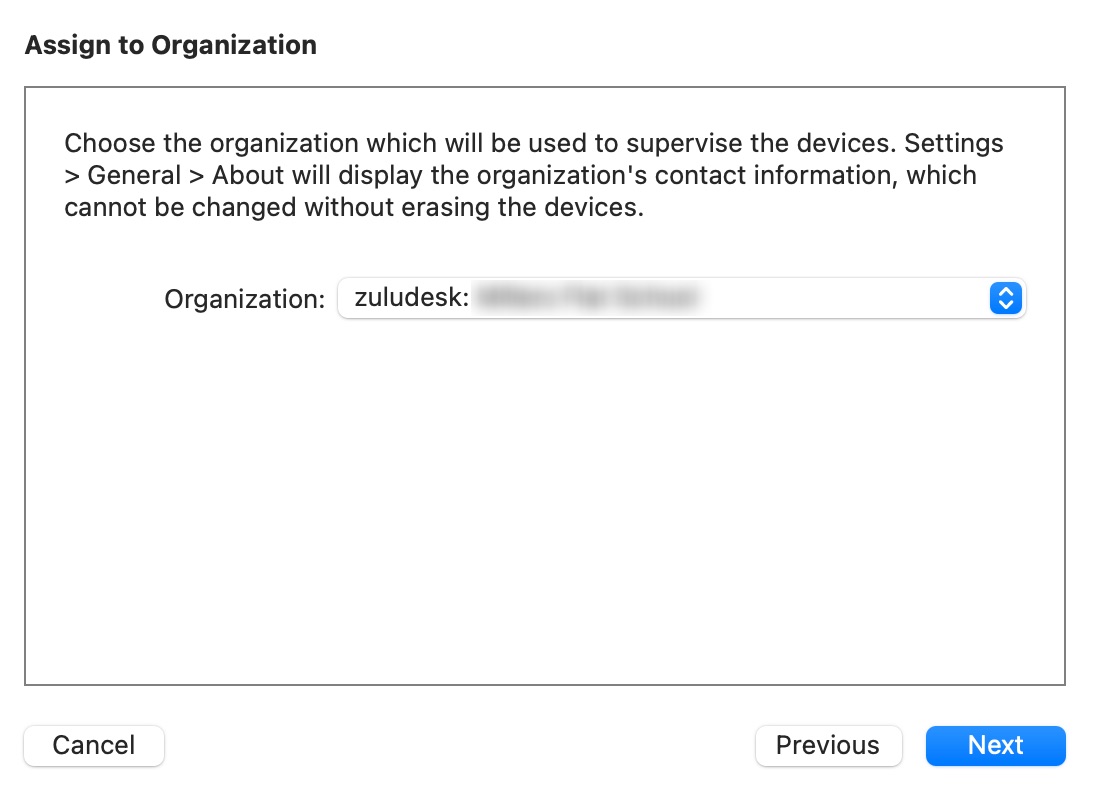
- Enter your Username and Password for Apple School Manager, then click Next
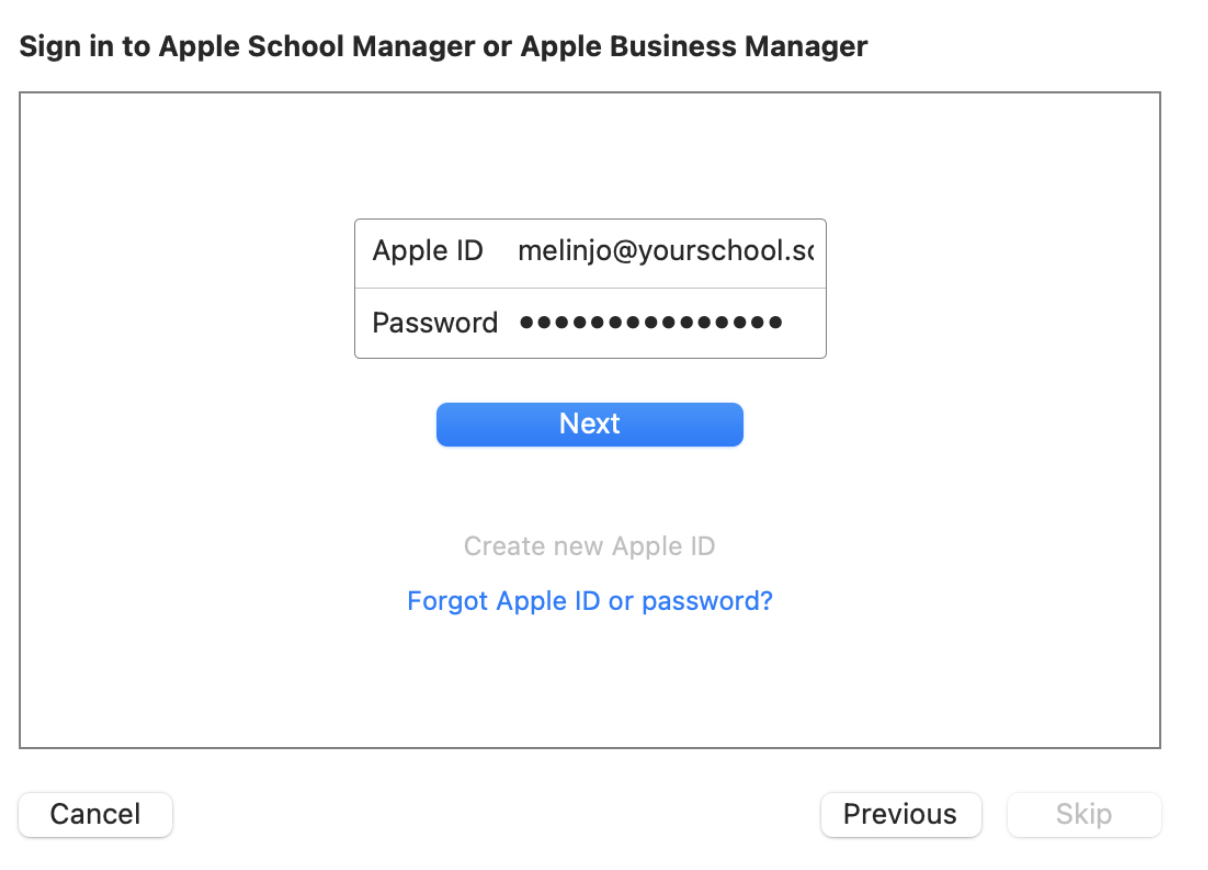
- Enter the verification code, then click Next
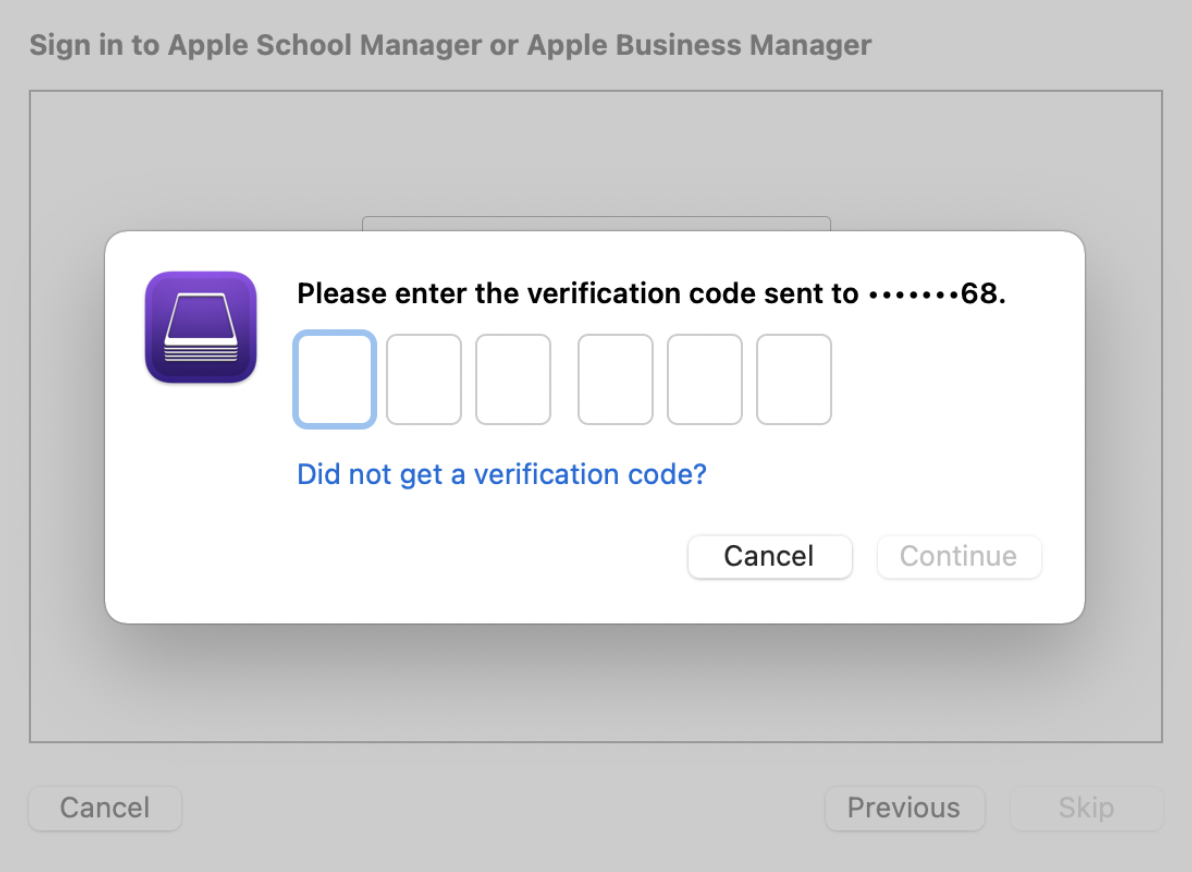
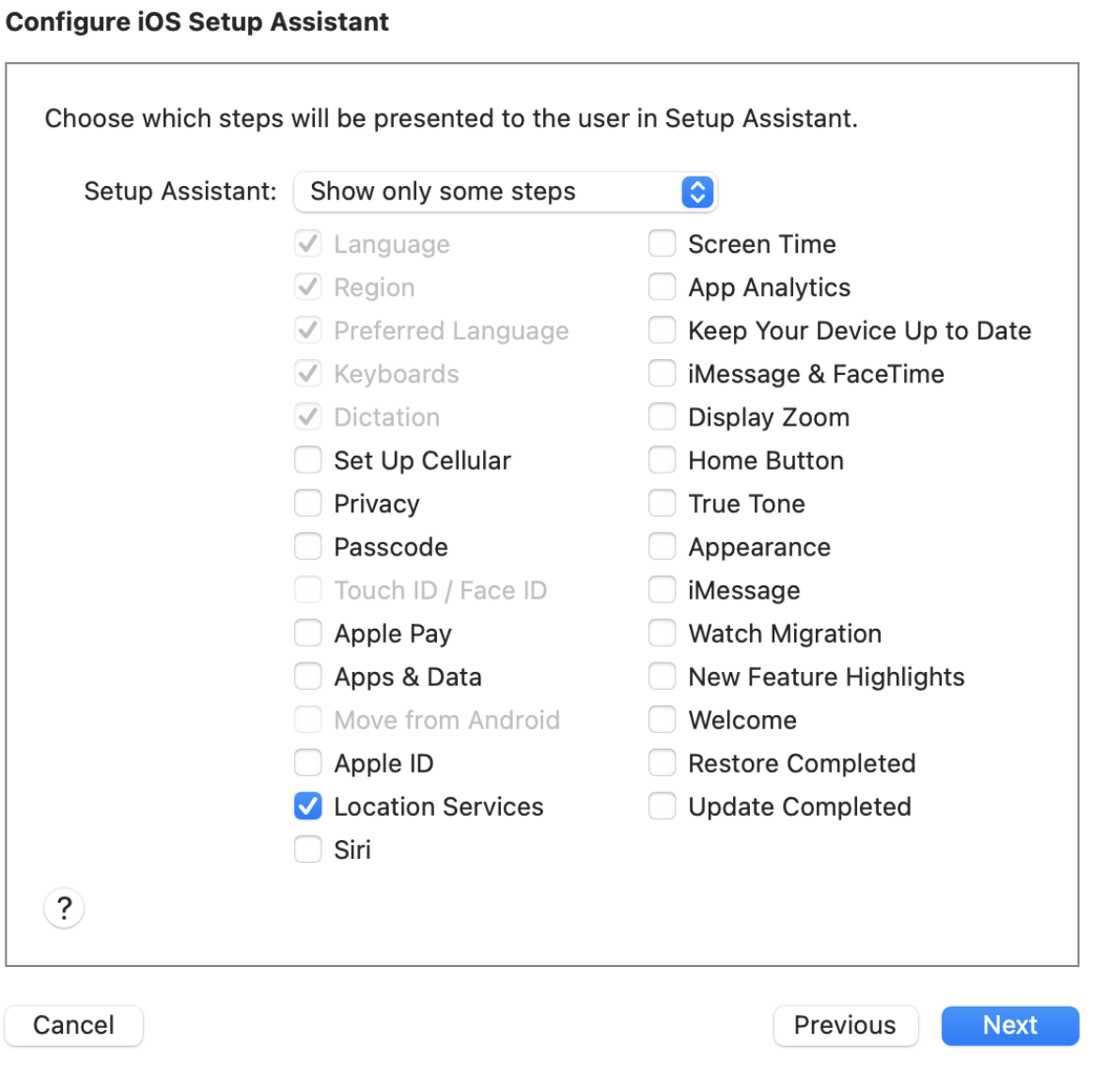
- Tick Location Services, then click Next
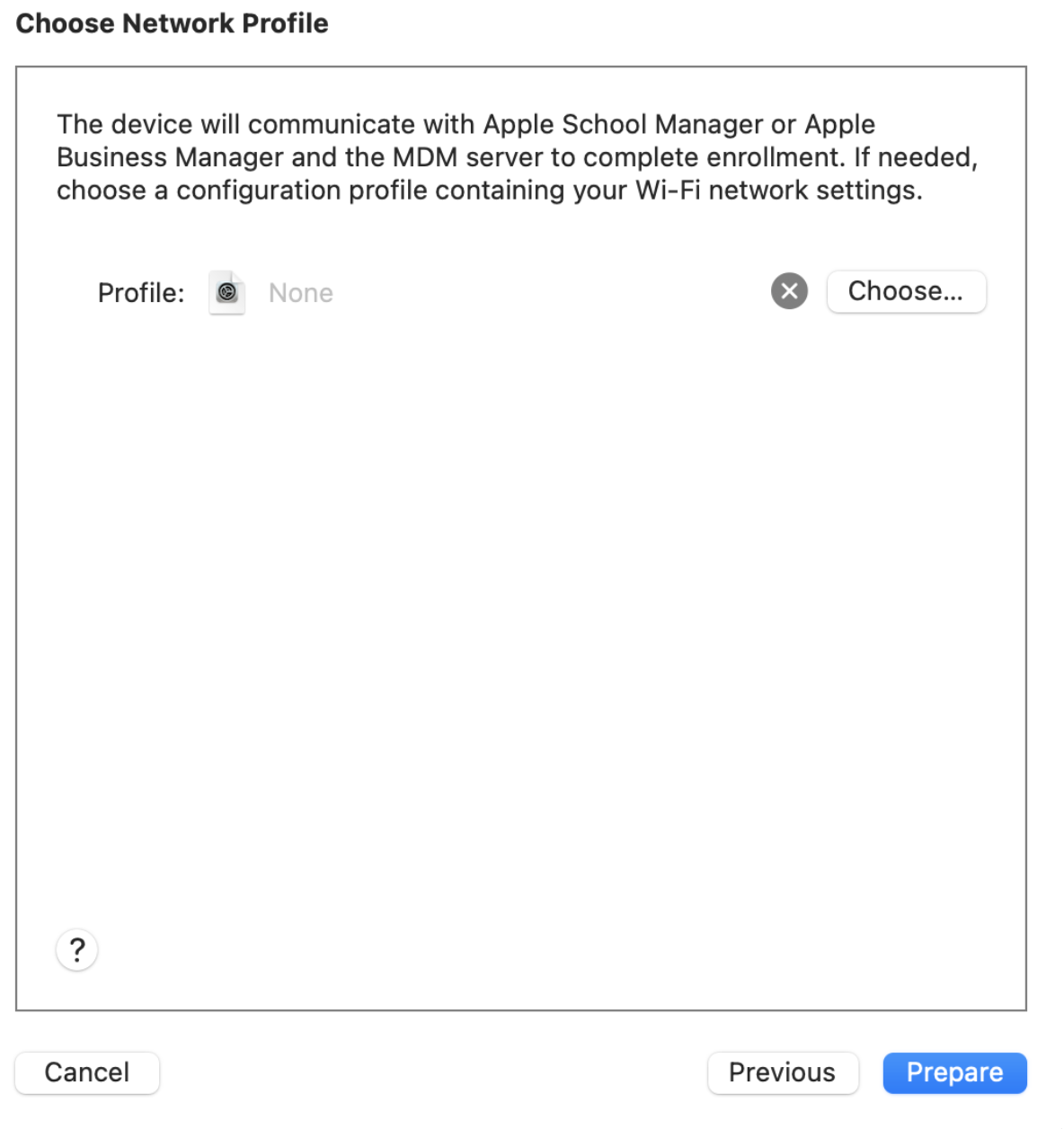
- Click Choose
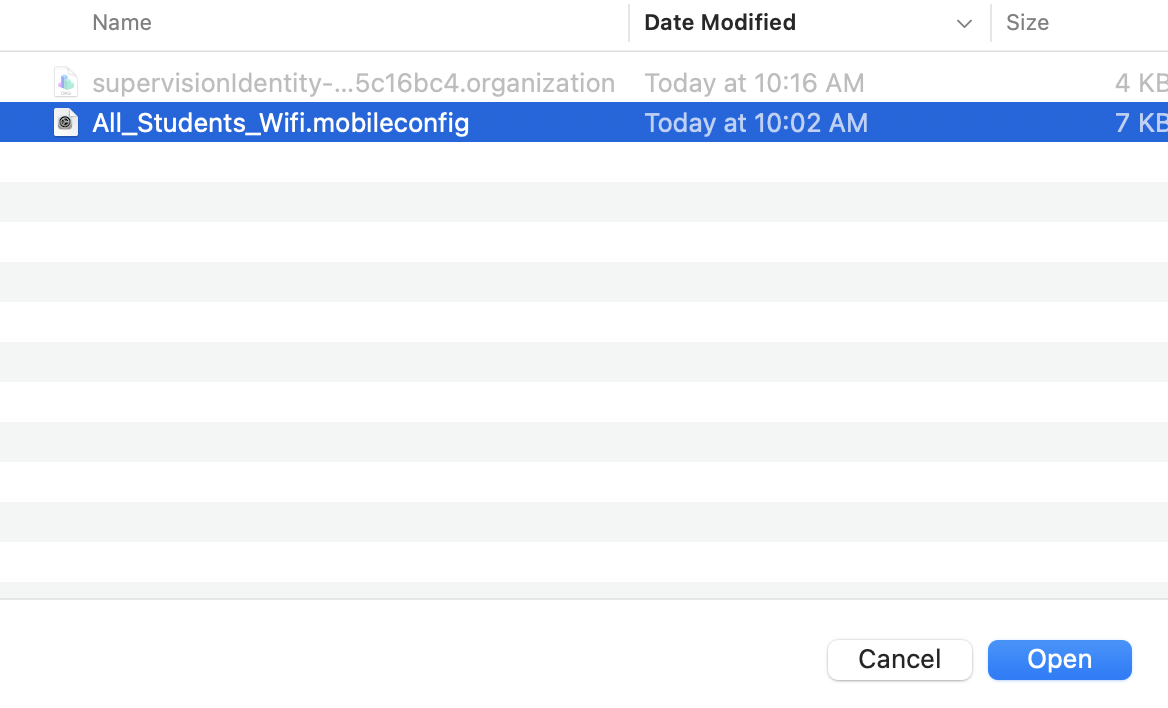
- Browse to Downloads, click on the wifi profile, then click Open
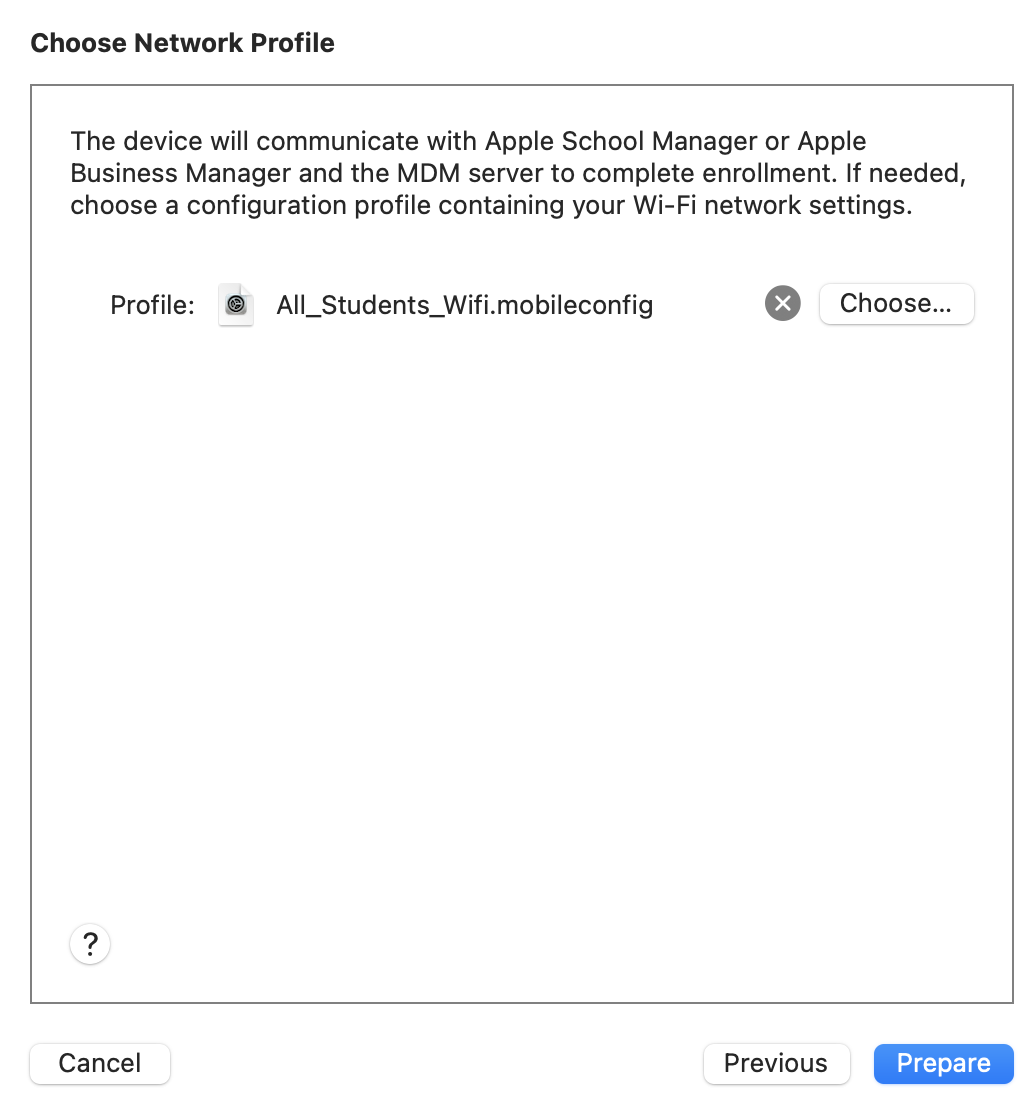
- Click Prepare
- Click Done
Comments
0 comments
Article is closed for comments.