
Outline
This article will take you through the steps of adding an iPad to DEP.
Prerequisites
Apple computer that you can plug an iPad charging cable into
Apple Configurator 2
An admin account for Apple School Manager
An account to log into Jamf School
A BluePrint set up for your school (see How to configure Apple Configurator 2 to add an iPad to DEP)
Step 1 - Apply the BluePrint in Apple Configurator 2
- Connect the iPad to the computer with the USB cable and open up Apple Configurator 2
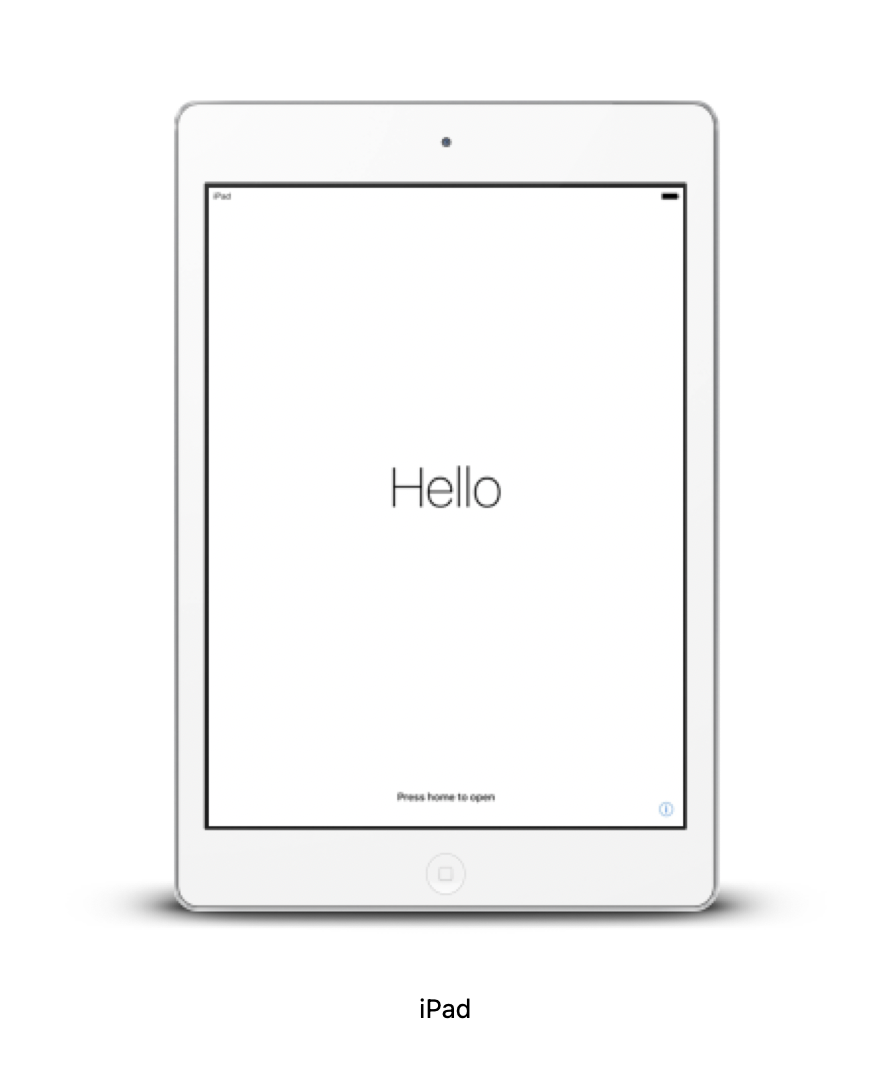
- Select the iPad(s), choose Blueprints from the Toolbar and select the Blueprint you set up previously
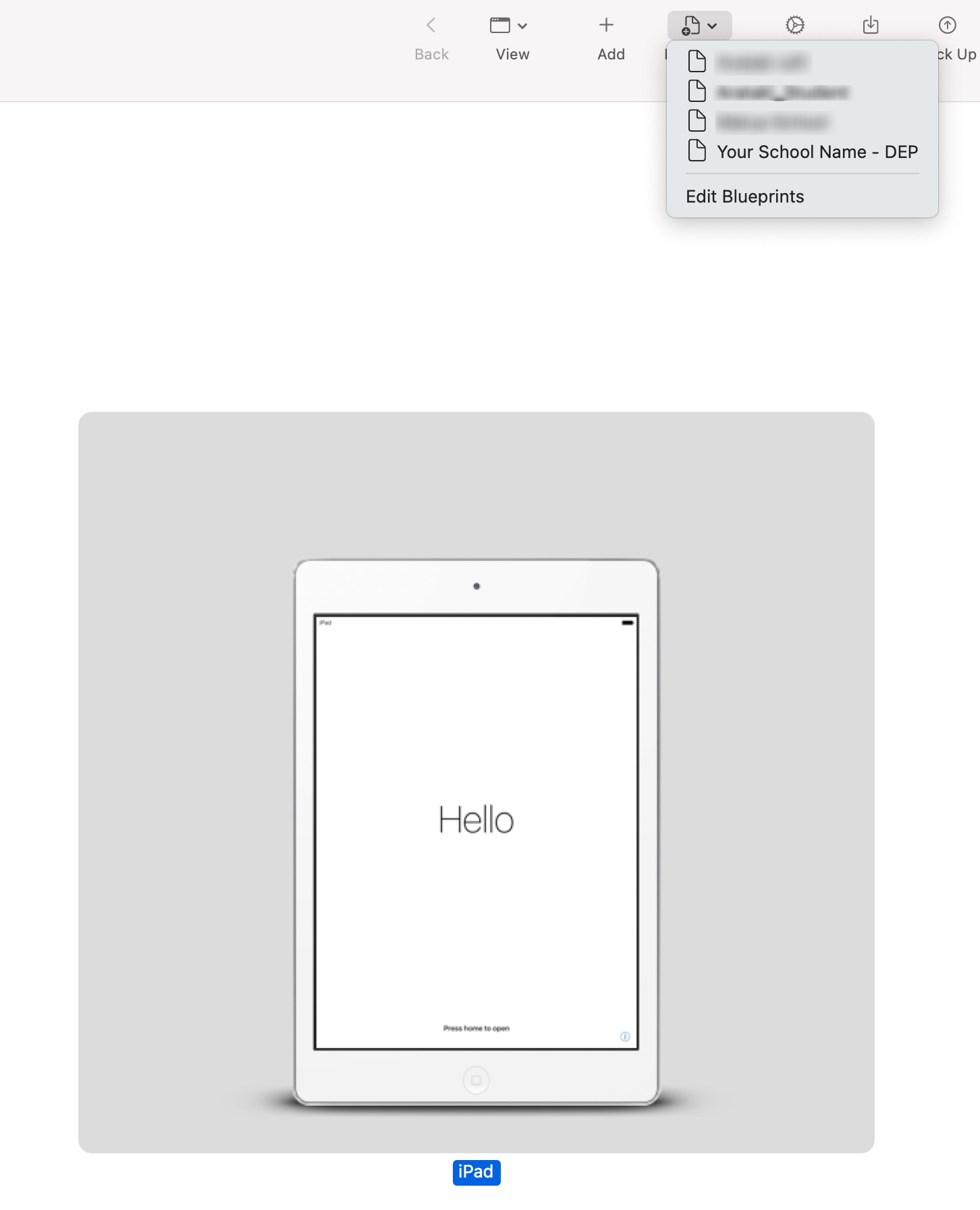
Step 2 - Assign the devices to Jamf School
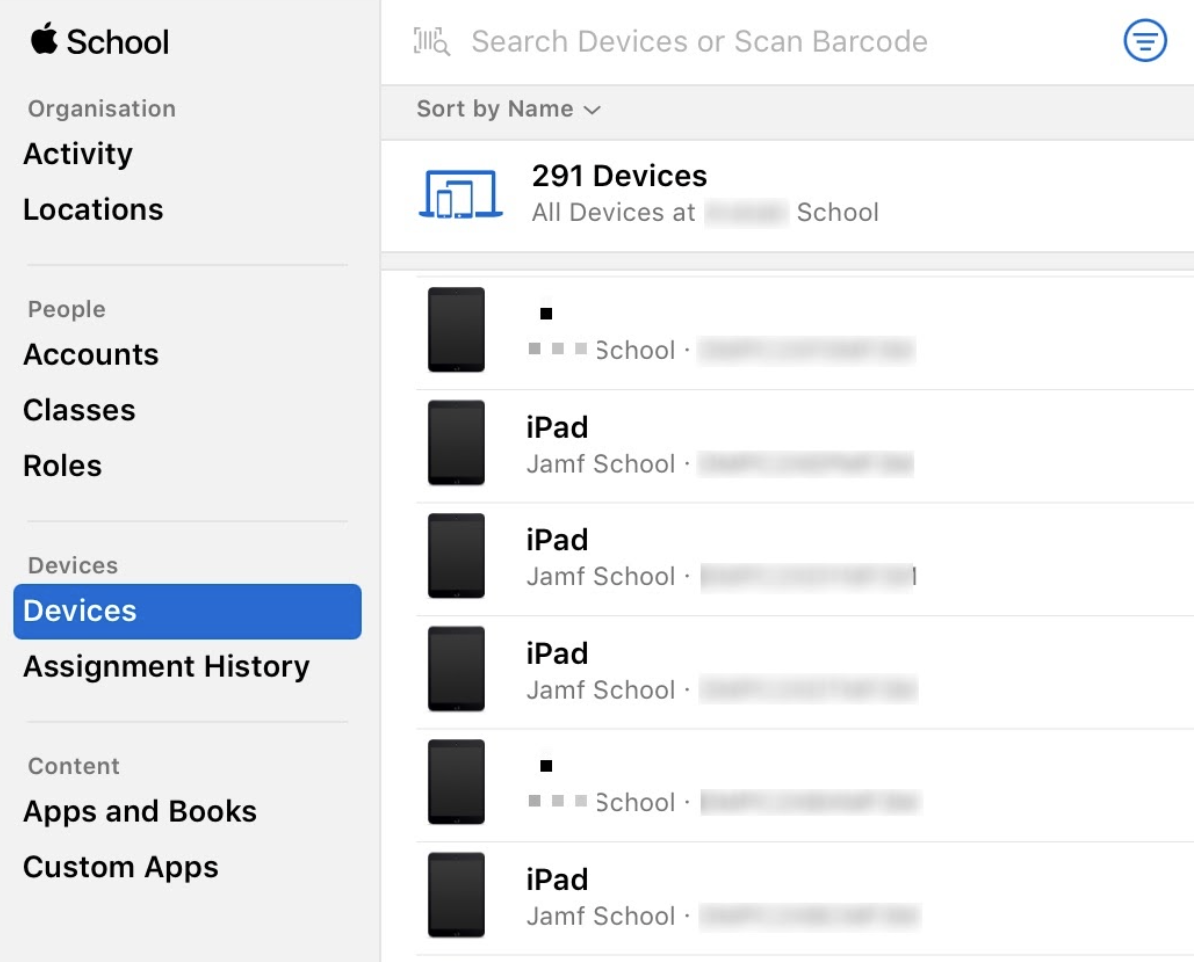
- Log into Apple School Manager http://school.apple.com
- Click on Devices and choose the iPad that has been added
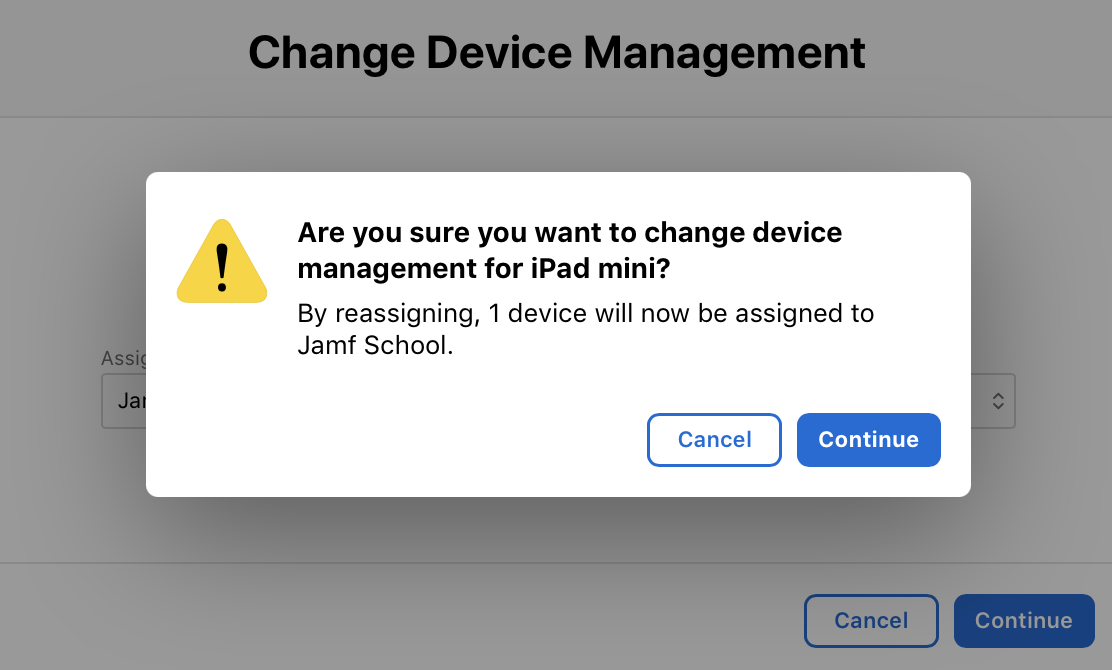
- Click Edit Device Management, select the Jamf School server and click continue
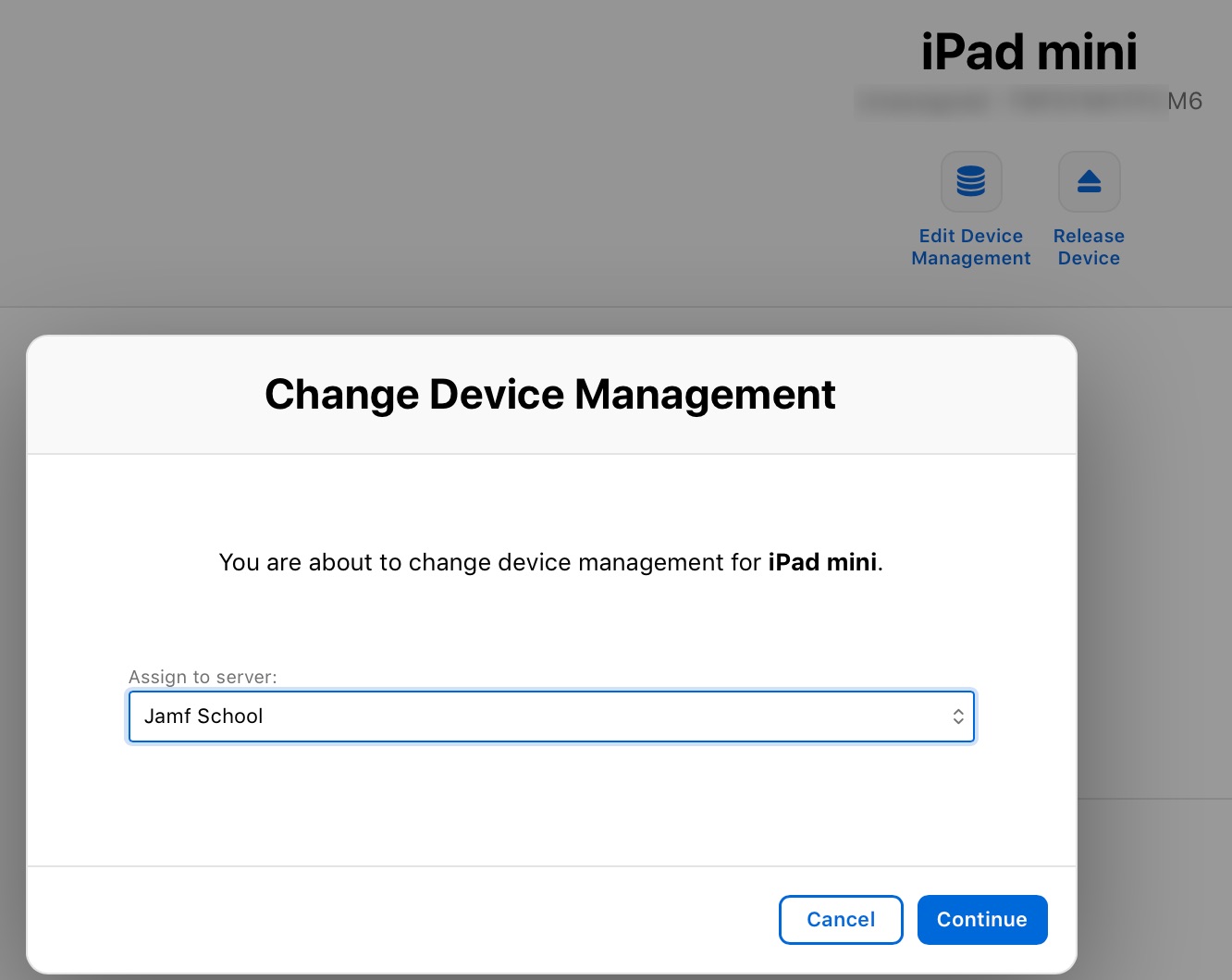
- Click Continue
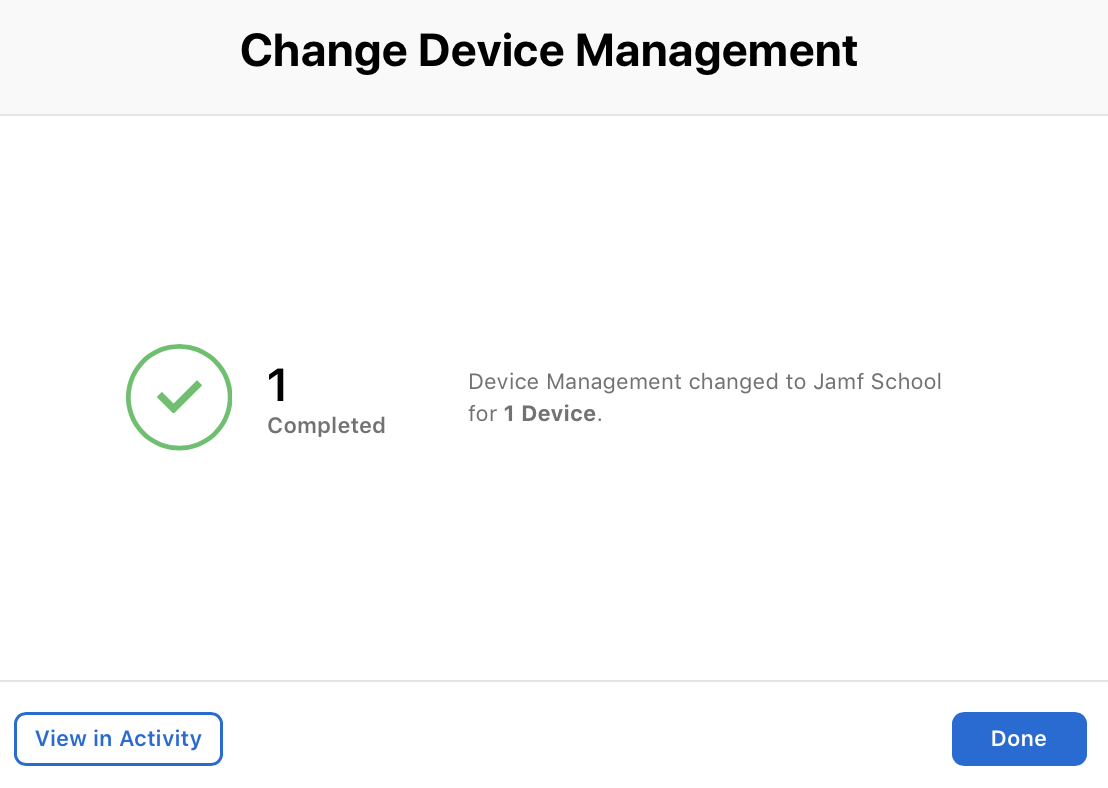
- Click Done
Step 3 - Assign the DEP profile in Jamf School
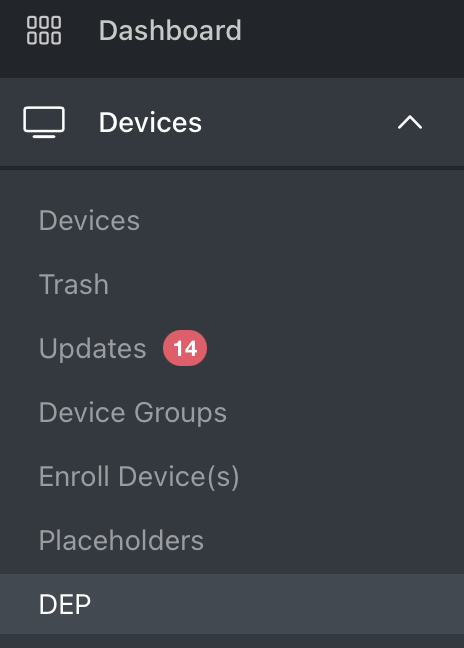
- Open Jamf School and click on Devices then DEP
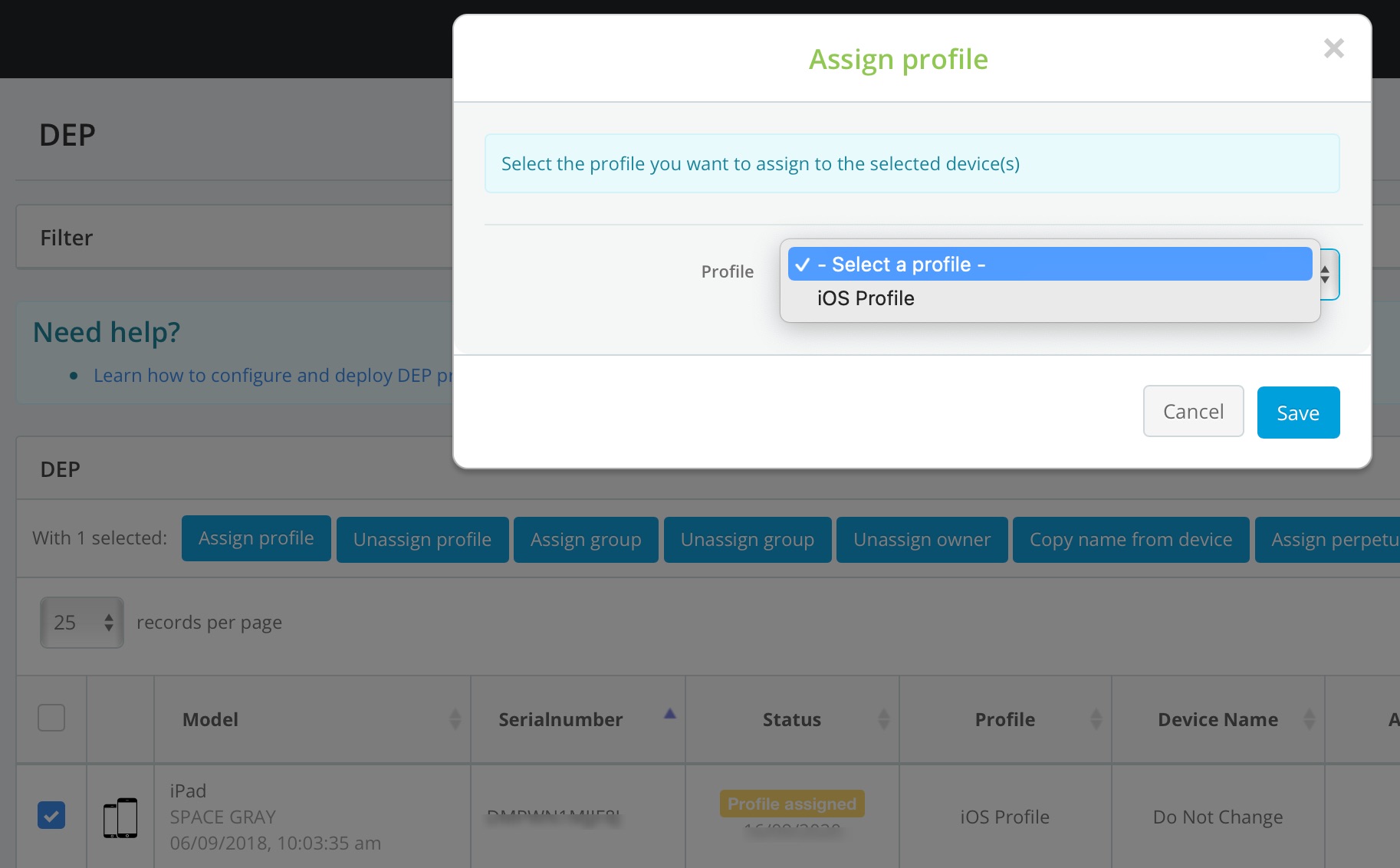
- Select the iPad, click assign Profile, choose iOS Profile then click Save
The device is now ready to be set up.
Comments
0 comments
Article is closed for comments.